
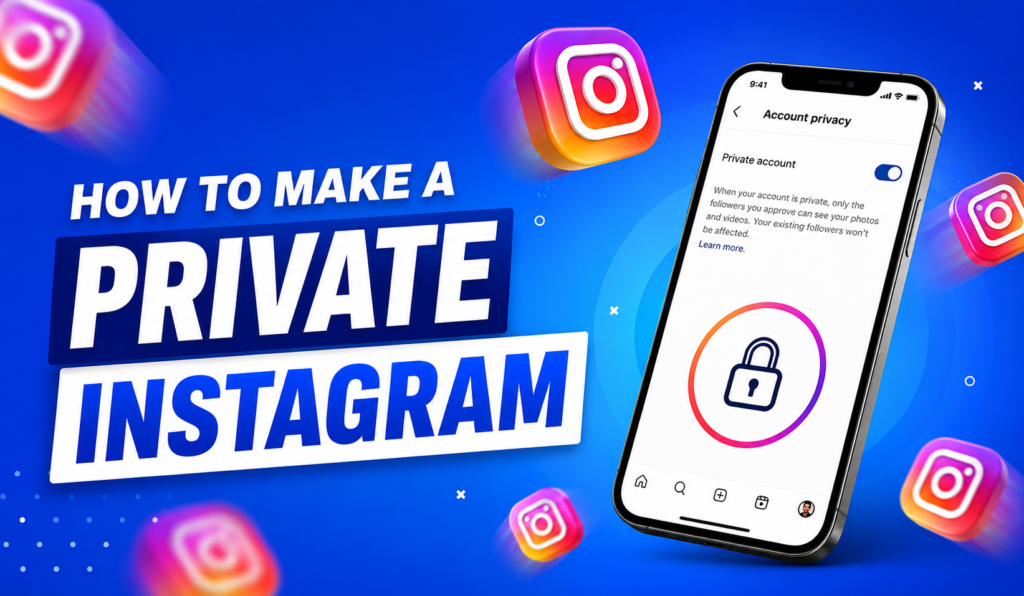
So, you want more control over who sees your posts, right? Maybe you’re tired of strangers viewing your photos. Or maybe you just want a smaller, closer circle of friends checking out your feed. no matter what brought you here, you’re in the right place.This guide walks you through everything you need to know about switching your account to private mode, and it does it in plain, simple English.
By the end of this article, you’ll know exactly how to make a private Instagram account, what changes once you do, and how to avoid common mistakes along the way. Let’s dive in.
What Does It Mean to Make a Private Instagram?
Let’s start with the basics. When your Instagram account is public, anyone on the app can see your posts, stories, and profile info, even if they don’t follow you. That means strangers, old classmates, or random people scrolling through hashtags can look at your content whenever they want.
A private account flips that switch. Once you turn it on, only people you approve as followers can see your posts, stories, and reels. Everyone else just sees your profile picture, your bio, and a message that says your account is private. They’ll need to send a follow request, and you get to decide whether to accept it or not.
Think of it like putting a lock on your front door. You still live in the same house, and people can still knock. But now, you choose who gets to come inside.
Why Should You Make Your Instagram Private?
There are plenty of good reasons people switch their accounts to private. Let’s go through a few of the most common ones.
First, privacy matters more than ever these days. A lot of people don’t want random strangers seeing their vacation photos, their kids, or their daily life. Keeping your account private limits your audience to people you actually know and trust.
Second, it helps cut down on unwanted attention. Public accounts are more likely to get spam comments, weird direct messages, or even fake followers trying to scam you. A private account naturally filters out a lot of that noise.
Third, some people just prefer a smaller, more personal space online. Not everyone wants thousands of followers. Some folks would rather share their life with 50 close friends instead of 5,000 strangers.
Finally, if you’re a parent managing a teen’s account, or if you’ve had bad experiences with harassment or stalking, privacy settings give you an extra layer of protection. It’s not a perfect shield, but it definitely helps.
How to Make a Private Instagram
This is the exact phrase most people search when they want a fast answer, so let’s get straight to it. Making your account private takes less than a minute once you know where to look. The steps are almost identical whether you’re using an iPhone or an Android phone, with just a few small differences in menu layout. Below, we’ll break it down step by step for every device so you can follow along no matter what you’re using.
How to Make a Private Instagram on iPhone
If you’re an iPhone user, here’s exactly what you need to do.
Step-by-Step Guide for iOS Users
- Launch Instagram and tap your profile photo in the bottom-right corner.
- Tap the three horizontal lines in the top right corner. This opens the menu.
- Select “Settings and privacy” from the list.
- Scroll down and find Account privacy under the Who can see your content section.
- Tap it, then toggle on “Private account.”
- A confirmation message will appear on your screen.Tap “Switch to Private” to lock it in.
That’s it. Your account is now private. Any new follower requests will need your approval before they can see your posts.
How to Make Instagram Private on Android
Android users follow a very similar path, just with slightly different button placement depending on your phone’s version of the app.
Step-by-Step Guide for Android Users
- Launch the Instagram app and go to your profile by tapping your photo icon.
- Tap the menu icon, which looks like three stacked lines, in the top right corner.
- Choose “Settings and privacy” from the dropdown menu.
- Look for “Account privacy” and tap it.
- Flip the switch next to “Private account” to turn it on.
- Confirm your choice when the pop-up window shows up.
Once you finish these steps, your account switches over immediately. No waiting, no approval process needed on your end.
How to Make Instagram Private on Desktop or Web Browser
Not everyone uses the mobile app. If you’re on a computer, here’s how to do it through your browser.
Open your web browser and go to the Instagram website. Log into your account if you haven’t already. Click your profile picture in the top right corner, then select “Settings” from the dropdown menu. From there, click “Privacy and security” on the left sidebar. You’ll see an option labeled “Account privacy.” Click the toggle to switch it on, then confirm the change when asked.
The desktop version works just as well as the mobile app, so don’t worry if you’re not near your phone. You can manage your privacy settings from any device with internet access.
How to Make a Private Instagram Account for a Business Profile
Here’s something a lot of people don’t realize: business accounts can’t be made private. If you’ve converted your Instagram to a business or creator profile, you’ll need to switch it back to a personal account first before you can turn on privacy settings.
To do this, go to “Settings and privacy,” then tap “Account type and tools.” Look for the option to switch back to a personal account. Once you’ve made the switch, you can follow the same steps listed above to make it private.
Keep in mind that business accounts are public by design because they’re meant to reach as many people as possible for marketing and sales purposes. If privacy is more important to you than business features like analytics and ads, switching back to personal might be the better move.
What Happens When You Make Your Instagram Private?
Once your account goes private, a few things change right away. Let’s break down what to expect.
People who don’t already follow you won’t be able to see your posts, stories, reels, or tagged photos. They’ll only see your profile picture, username, bio, and the number of posts, followers, and following you have. If they want to see more, they’ll need to send a follow request.
Your existing followers keep their access. They won’t lose anything, and they can keep viewing your content like normal.
New followers must be approved manually. You’ll get a notification every time someone requests to follow you, and you can accept or deny each request.
Your posts won’t show up in public hashtag searches or the Explore page unless the viewer already follows you. This means less reach, but more control.
Comments and shares also become more limited. Only your approved followers can comment on your posts, and content shared to Stories by others usually requires your account to remain visible to that specific audience.
Public vs Private Instagram Accounts
Here’s a quick table comparing what changes between a public and a private account, so you can see the differences side by side.
| Feature | Public Account | Private Account |
| Who can see posts | Anyone on Instagram | Only approved followers |
| Appears in hashtag search | Yes | No (unless followed) |
| Appears on Explore page | Yes | No (unless followed) |
| Follow requests | Automatic | Must be approved |
| Comments from strangers | Allowed | Not allowed |
| Best for | Businesses, influencers, public figures | Personal use, close friends and family |
Quick Steps Summary
Here’s a fast recap table you can glance at anytime you need a reminder.
| Quick Steps Summary | |
| Step 1 | Go to your profile |
| Step 2 | Tap the menu icon |
| Step 3 | Open Settings and privacy |
| Step 4 | Tap Account privacy |
| Step 5 | Turn on Private account |
| Step 6 | Confirm the switch |
How Can I Make My IG Private Without Losing Followers?
This is one of the biggest worries people have before flipping the switch. The good news is, you won’t lose any current followers just by making your account private. Everyone who already follows you keeps their access, no questions asked.
What changes is how new people can find and follow you. Since your posts won’t show up in searches or the Explore page for non-followers, your growth might slow down a bit. If you’re worried about losing reach, consider sharing your profile link directly with people you want to connect with, or post a story letting your audience know you’re switching to private so they can follow along smoothly.
Another tip: before switching, take a moment to clean up your follower list. Remove any bots, inactive accounts, or people you don’t recognize. This way, your private account stays exactly how you want it from day one.
Common Mistakes to Avoid When Making Instagram Private
A few small mistakes can cause headaches later, so let’s cover what to watch out for.
One common mistake is forgetting that a private account still shows your username and profile photo to everyone. If your profile picture contains sensitive info, you might want to change it before switching.
Another mistake is not checking your current followers list first. Once you’re private, it’s harder to keep random people out if they already followed you before the switch. Take five minutes to review and remove anyone you don’t want seeing your content.
People also forget that switching to private affects any links they’ve shared publicly, like on other social media platforms. If you posted your Instagram link somewhere expecting new visitors to see your content instantly, they won’t be able to unless you approve their follow request first.
Lastly, some users assume a private account is 100% secure, but that’s not entirely true. Anyone you approve as a follower can still take screenshots or share your content outside the app. Privacy settings limit visibility, but they don’t guarantee total protection.
How to Keep Your Account Private and Still Grow Your Audience
You might think privacy and growth don’t mix, but that’s not really true. You can still build a following with a private account, especially if you’re focused on quality over quantity.
Share your profile with people through direct messages, group chats, or other platforms where they already know you. Post engaging content regularly so your approved followers stay interested and share your posts with their own friends. Respond to comments and messages to build a real connection with your audience.
Remember, a private account isn’t about hiding from everyone. It’s about choosing who gets access. You can still grow a loyal, engaged community, it just takes a bit more personal effort compared to a public account that grows through hashtags and algorithms.
Frequently Asked Questions
Can I switch back to public anytime? Yes, absolutely. You can switch your account back and forth between private and public as many times as you want. Just follow the same steps and toggle the switch off.
Will my old followers see my posts if I make my account private? Yes, current followers keep full access to your content even after you switch to private.
Does making my account private stop people from finding me in search? No, people can still find your username in search. They just can’t view your posts or stories unless you approve their follow request.
Can I approve some followers and deny others? Yes, you have full control. Every follow request goes to your notifications, and you decide who to accept or deny individually.
Is a private Instagram completely safe from screenshots? No. While privacy settings limit who sees your content, approved followers can still screenshot or share your posts outside the app.
Final Thoughts
Making your Instagram private is one of the easiest ways to take back control of your online presence. Whether you’re on iPhone, Android, or desktop, the process takes just a few taps and less than a minute of your time. You get to decide who sees your life, your photos, and your stories, without losing the followers you already have.
If privacy matters to you, there’s no reason to wait. Head into your settings today, flip that switch, and enjoy a more personal, controlled Instagram experience. And remember, you can always switch back to public later if your needs change down the road. It’s your account, your rules.